Using the mobile apps
Keepiq for Android and Keepiq for iOS open your Keepiq vault on your phone. You search, copy, add and edit logins there. You also make passwords and share secrets with a Send link. The app opens your vault with your master password. Your Nextcloud only ever sees encrypted values.
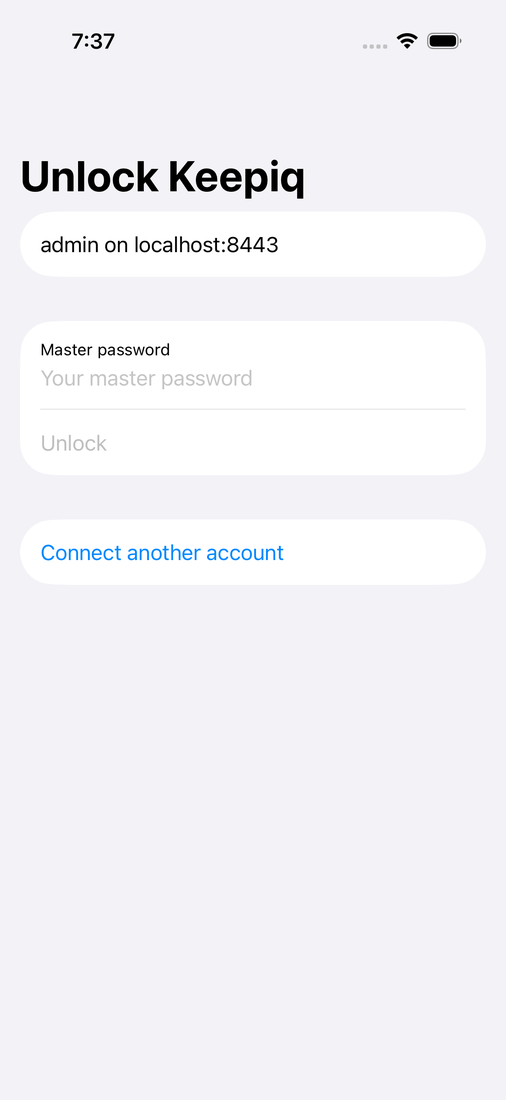
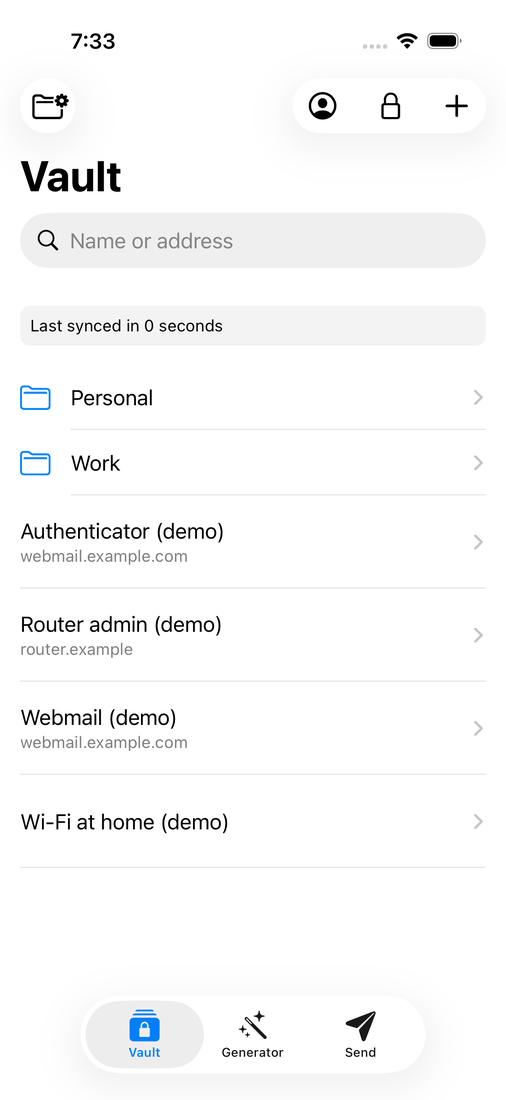
Keepiq for Android is available as a preview. Keepiq for iOS is not available yet. The iOS screenshots on this page show where it is heading.
Getting the app
Android
Keepiq for Android needs Android 9 or later.
- Open the Keepiq mobile releases on GitHub on your phone.
- Download the
keepiq-android-<version>.apkfile from the newest release. It runs on every phone. The smallerkeepiq-android-<version>-arm64-v8a.apkholds only what most current phones need; take it if you know your phone has that processor type. - Open the file. Android asks whether your browser may install apps. Allow it for this install.
- Choose Install.
Each mobile-v<version>-preview.<n> release is a preview. It is signed with a preview key, not with the key of the coming store builds. When Keepiq arrives on Google Play or F-Droid, you uninstall the preview first. Your vault stays on your Nextcloud, so you only connect the phone again.
Checking the download
Each release lists the SHA-256 of every APK, and carries it as a .sha256 file next to it. On a computer, compare it with:
sha256sum keepiq-android-<version>.apk
You can also check who signed the app. Run apksigner verify --print-certs from the Android SDK on the APK. The preview signing certificate has this SHA-256 fingerprint:
89:31:3B:10:6E:7D:43:FA:14:1E:CB:0B:4D:1C:18:8D:77:D8:B3:E2:14:DB:A9:FB:4E:8D:D3:C2:67:4B:FC:35
apksigner prints it in lower case and without colons. Do not install an APK with another fingerprint.
iOS
Keepiq for iOS is not available yet. It comes later, first through TestFlight and then in the App Store. It will need iOS 17 or later.
Connecting to your Nextcloud
- Open Keepiq and enter the address of your Nextcloud.
- Choose Sign in with your browser. Your phone's browser opens your Nextcloud login page.
- Sign in and grant access. Keepiq picks up the connection by itself.
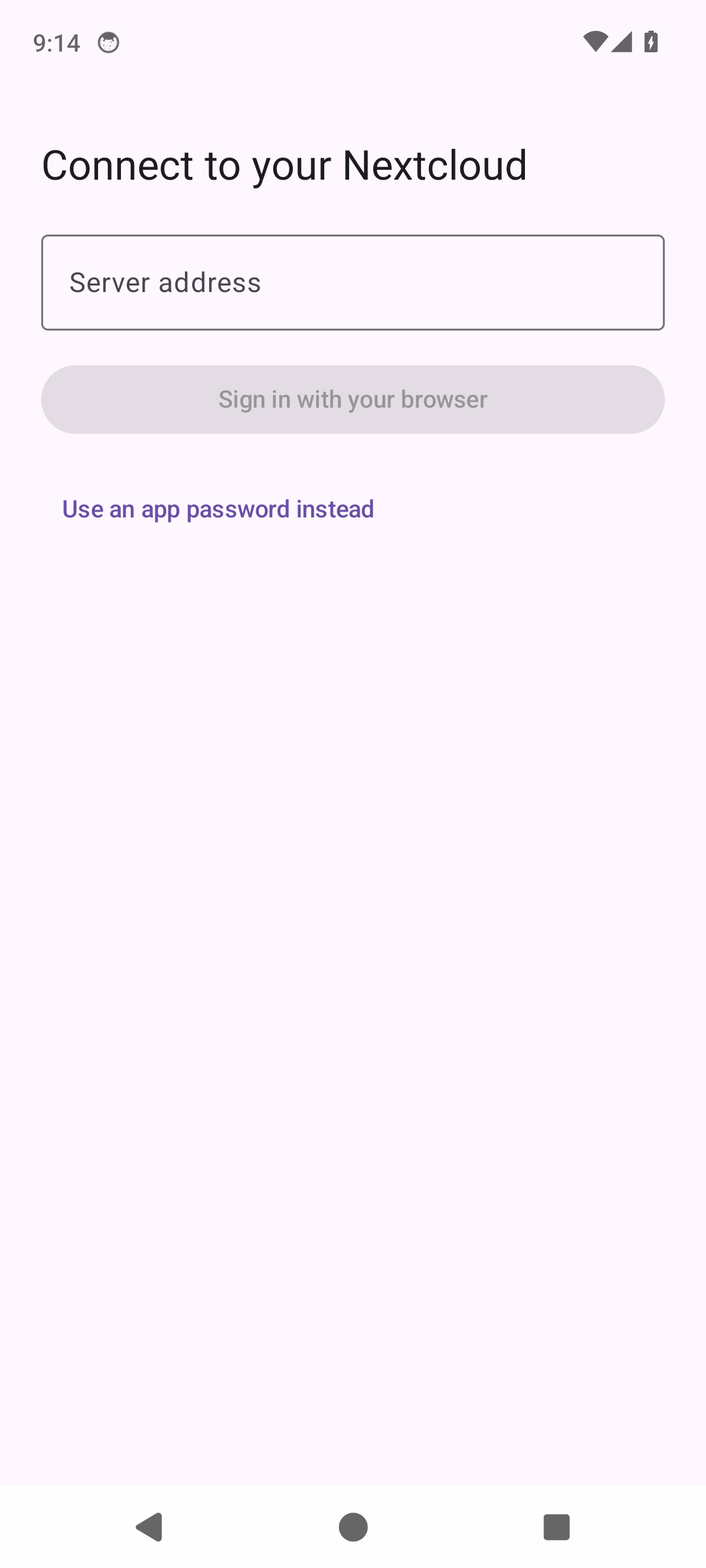
Can't use the browser sign-in? Choose Use an app password instead. Create an app password in Nextcloud under Settings, then Security. Then enter your user name and that app password in Keepiq.
Keepiq only connects over https, so your app password never travels in clear. Your Nextcloud security settings list the phone as "Keepiq for Android" or "Keepiq for iOS". Revoke it there to cut the phone off.
Does your organisation require two-factor authentication? Then Keepiq asks you to set it up in Nextcloud first. Do that and choose Check again.
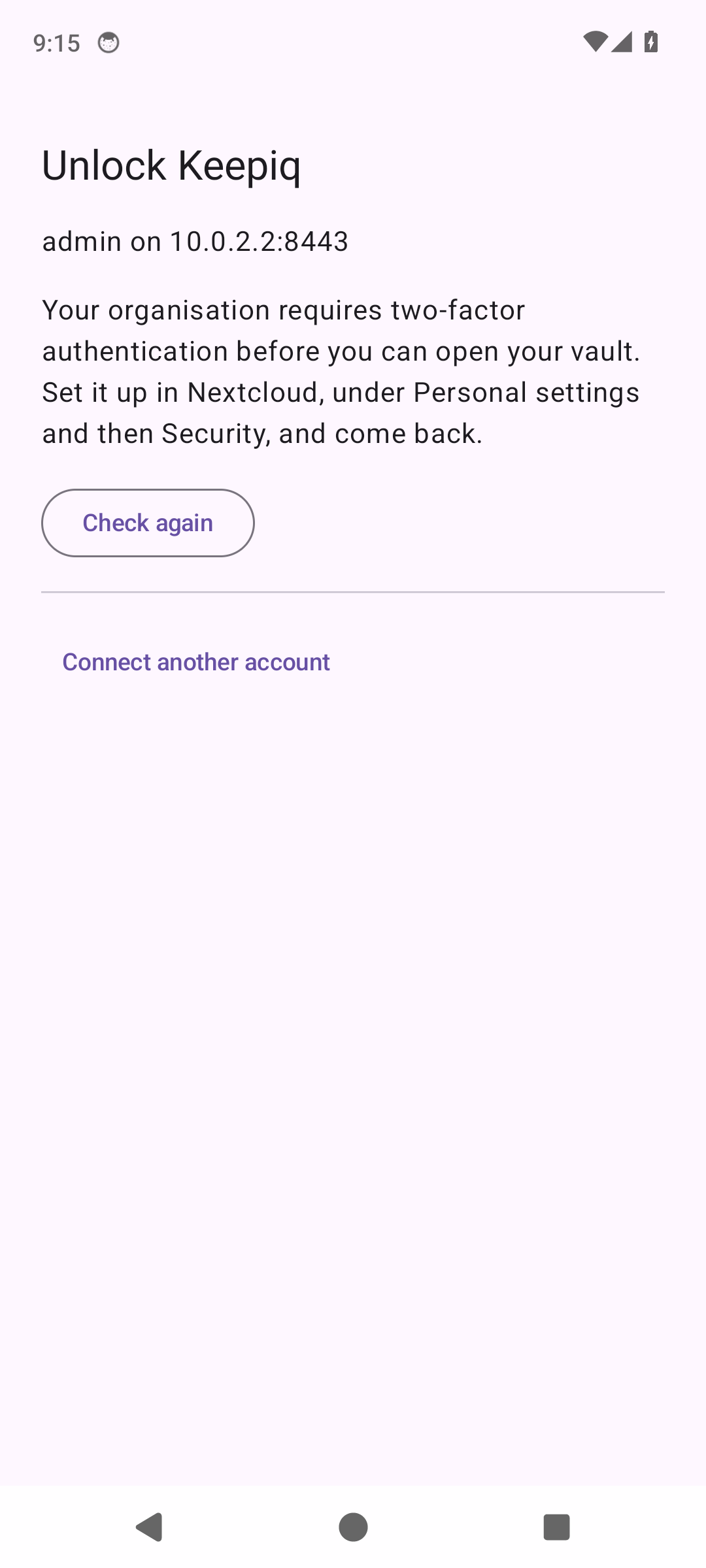
Use Connect another account to add a second account, on the same server or another one.
Unlocking
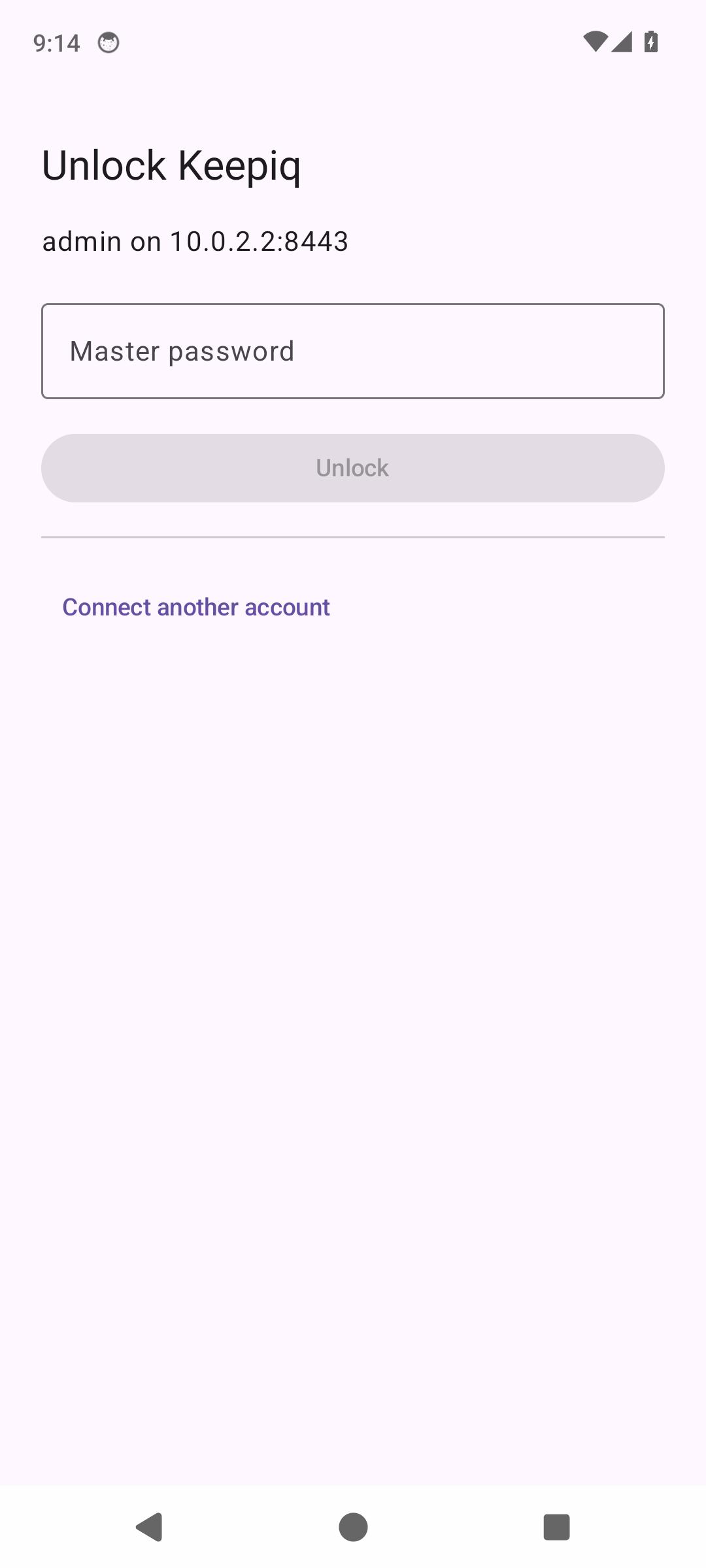
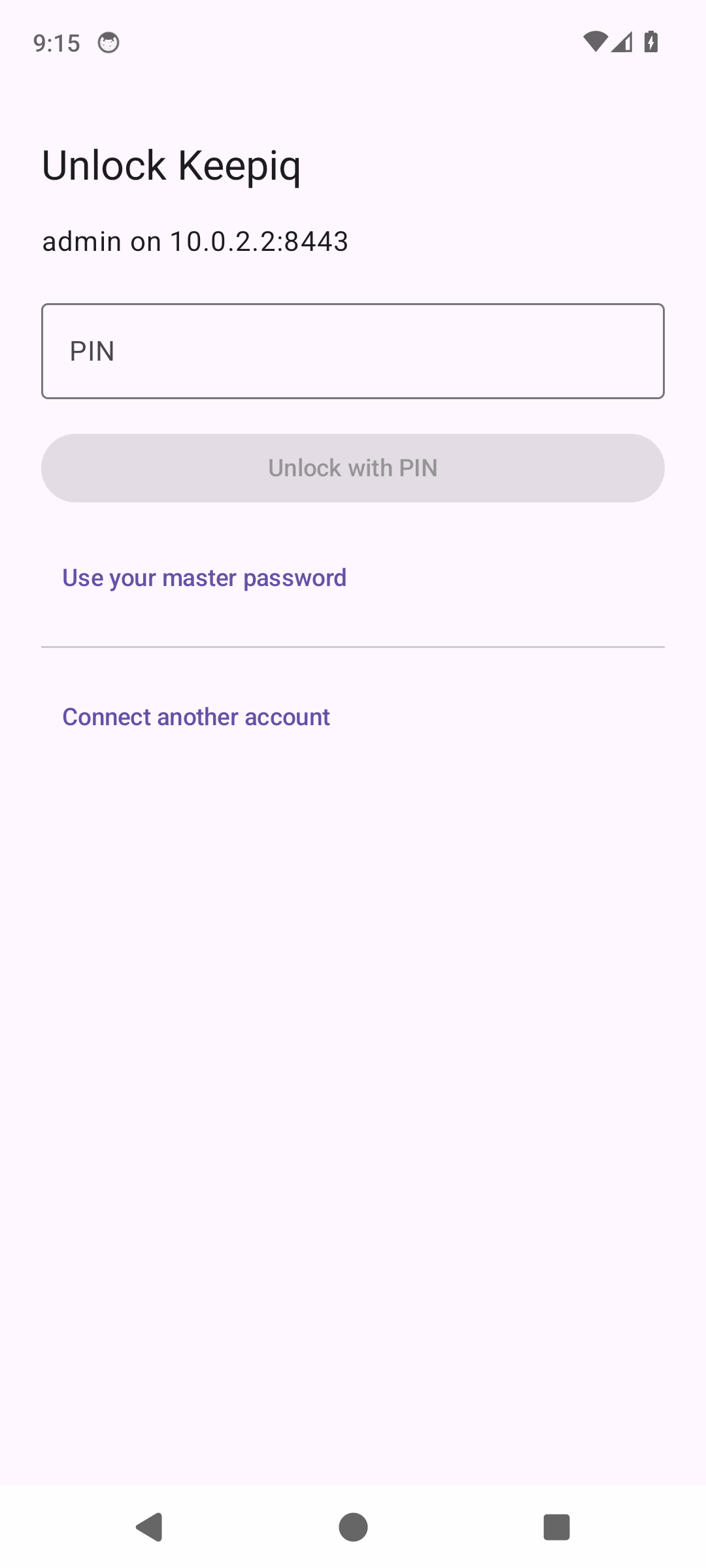
Enter your master password and choose Unlock. Your master password never leaves the phone.
PIN and biometrics
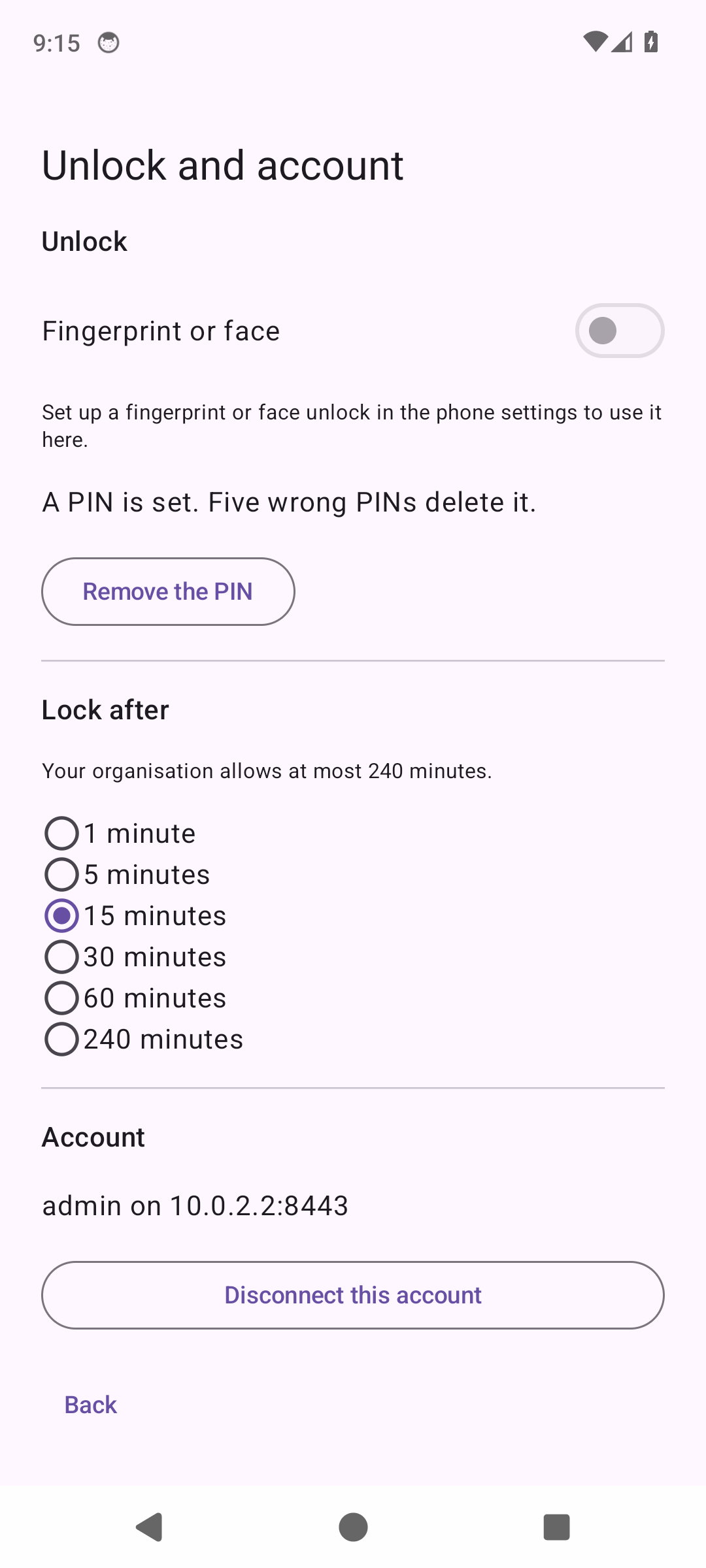
Typing your master password each time is slow. Open Unlock and account from the settings button to make it faster:
- Fingerprint or face unlocks with your fingerprint, or with Face ID on an iPhone. Set up a fingerprint or face in the phone settings first. A new fingerprint on the phone switches it off. Then you unlock with your master password once.
- PIN unlocks with a short PIN. Five wrong PINs delete it, and then you need your master password.
Auto-lock
Under Lock after you choose how long Keepiq stays open while you do not use it. Pick 1, 5, 15, 30, 60 or 240 minutes. Your organisation can set a maximum, and the screen tells you what it is. Keepiq for Android also locks when you turn the screen off.
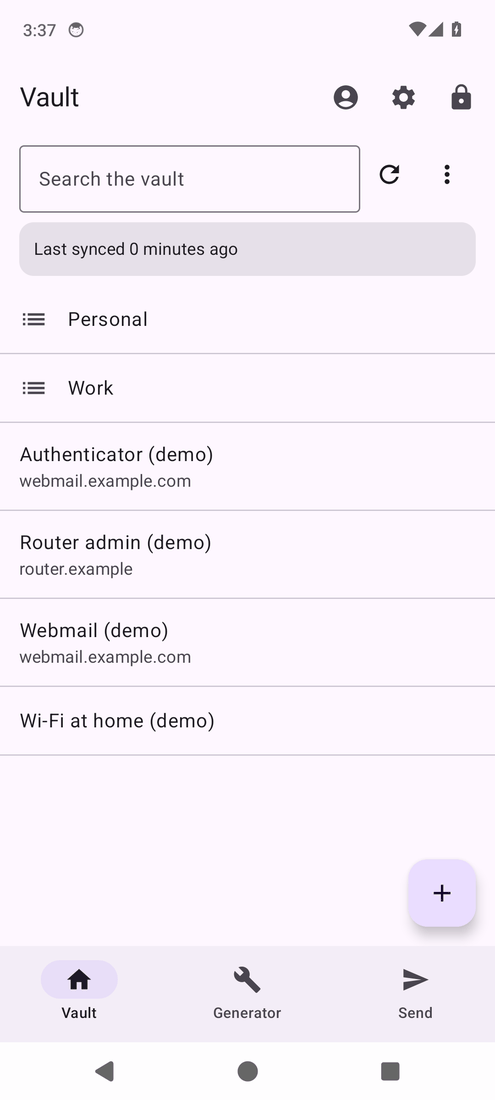
The lock button at the top of the vault locks it at once. Locking forgets your vault key. Your logins stay on the phone in encrypted form only.
The same settings screen has Disconnect this account. It signs the phone out and revokes its app password. It also removes the vault copy from the phone.
The vault
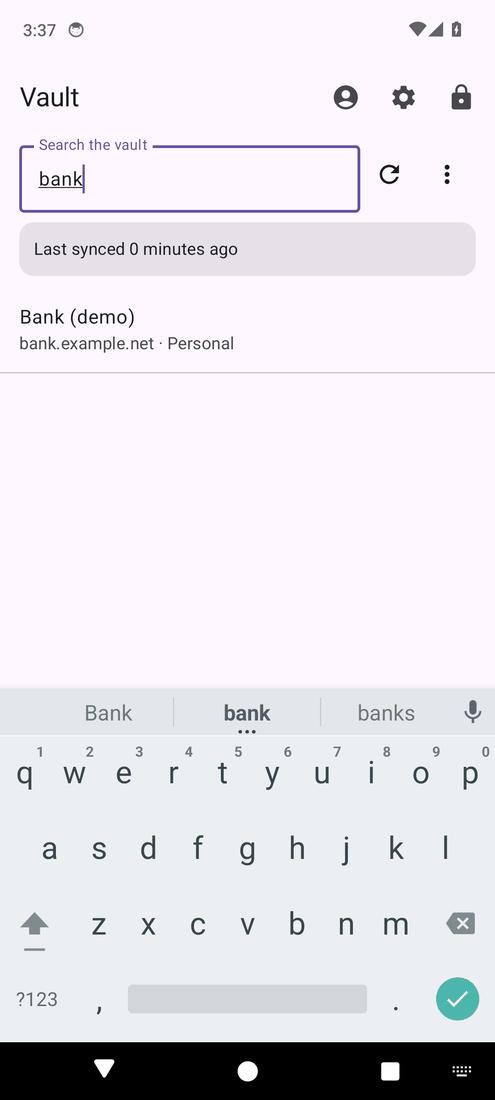
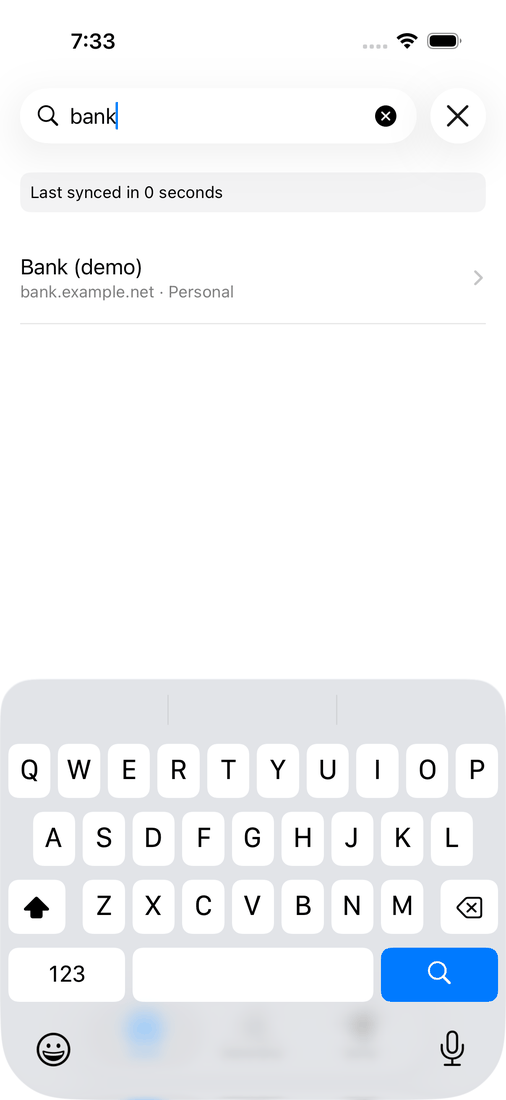
The vault lists your folders and your items. Type in the search field to find an item by name or address.
Opening an item
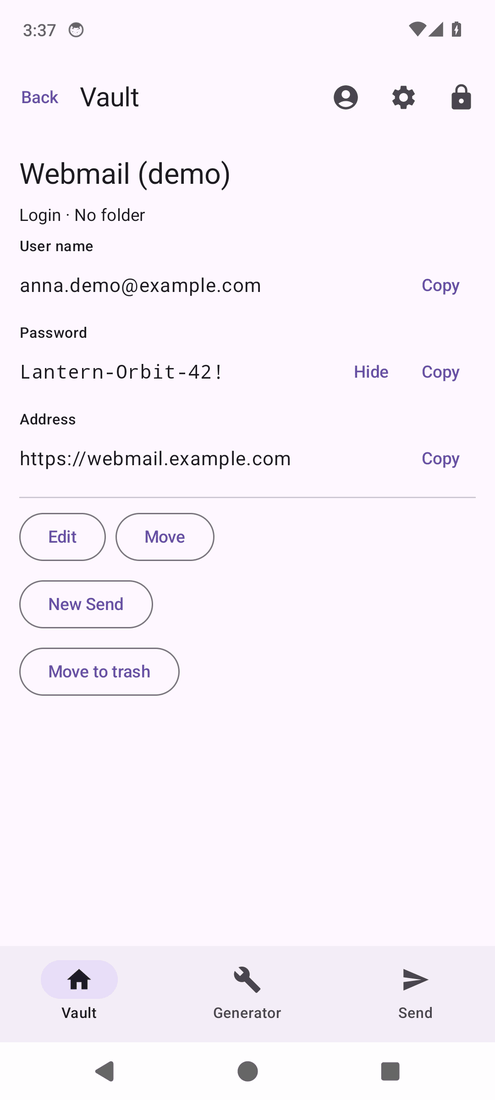
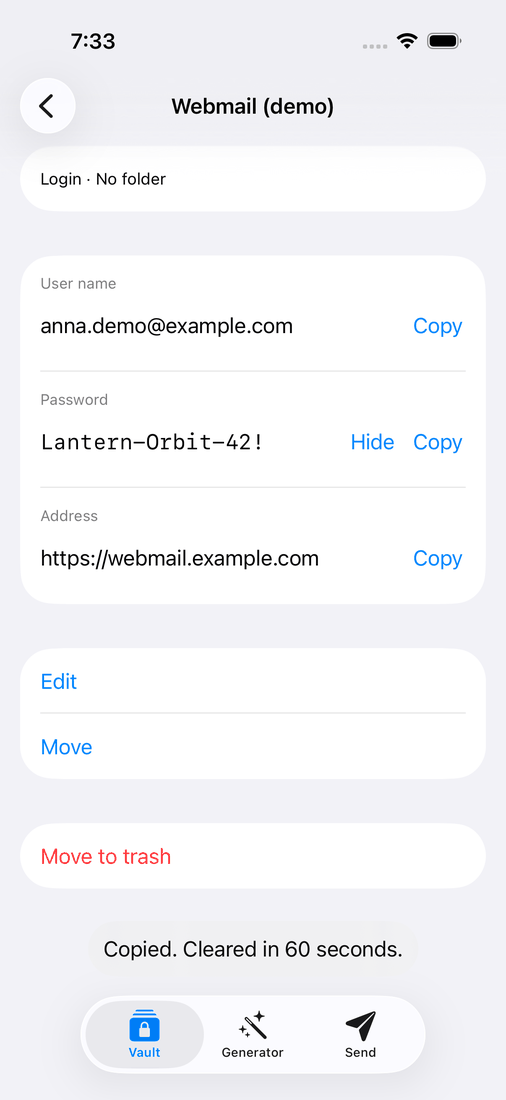
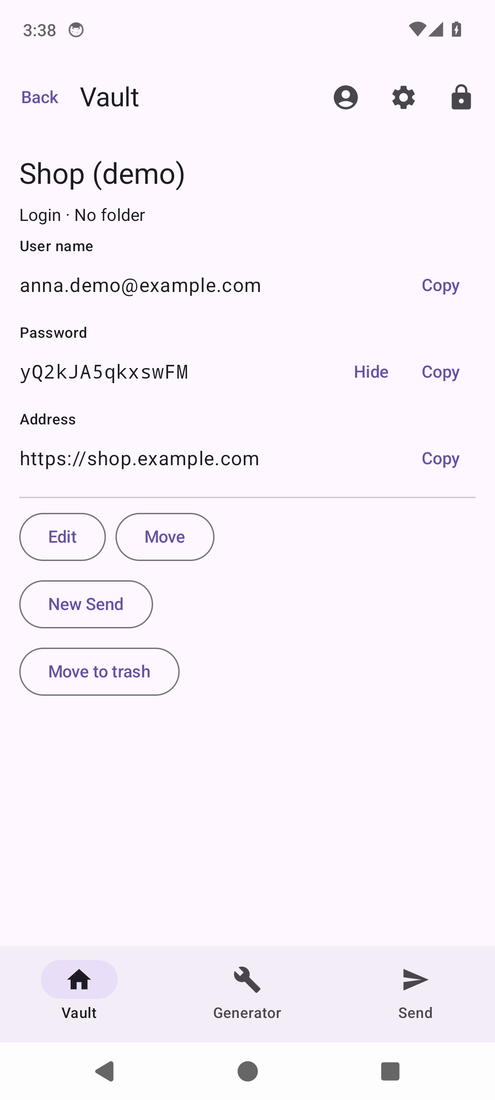
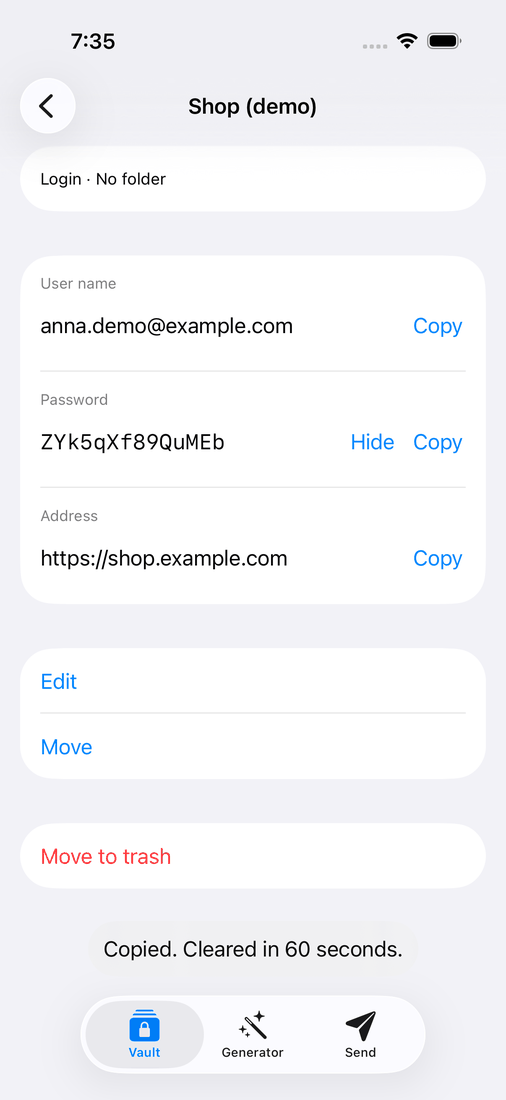
Tap an item to see its fields. Show reveals the password and Hide covers it again.
Copy puts a value on the clipboard. Keepiq clears it again after 60 seconds. Android 13 and later hide the copied value in the clipboard preview. On iOS the copy stays on the phone. It does not go to your other Apple devices.
One-time codes
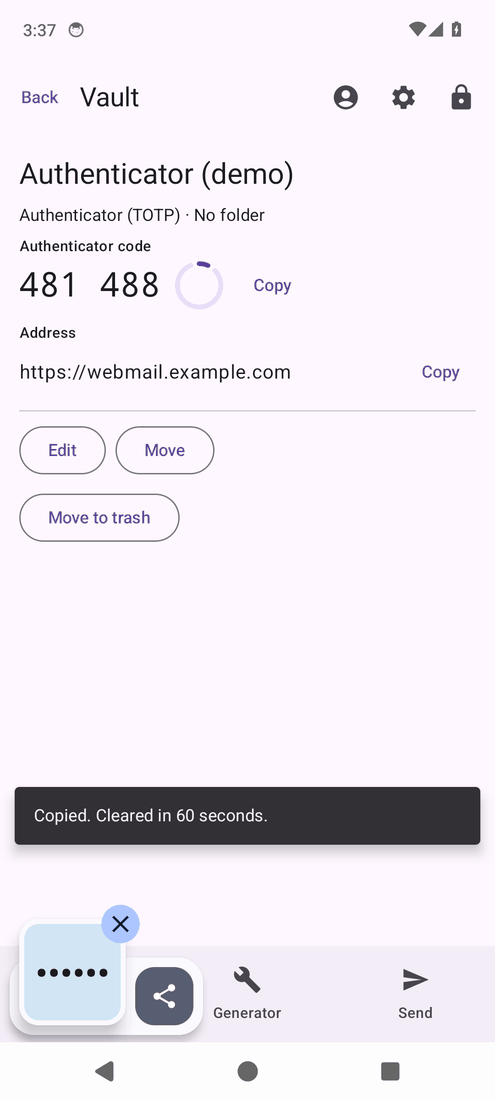
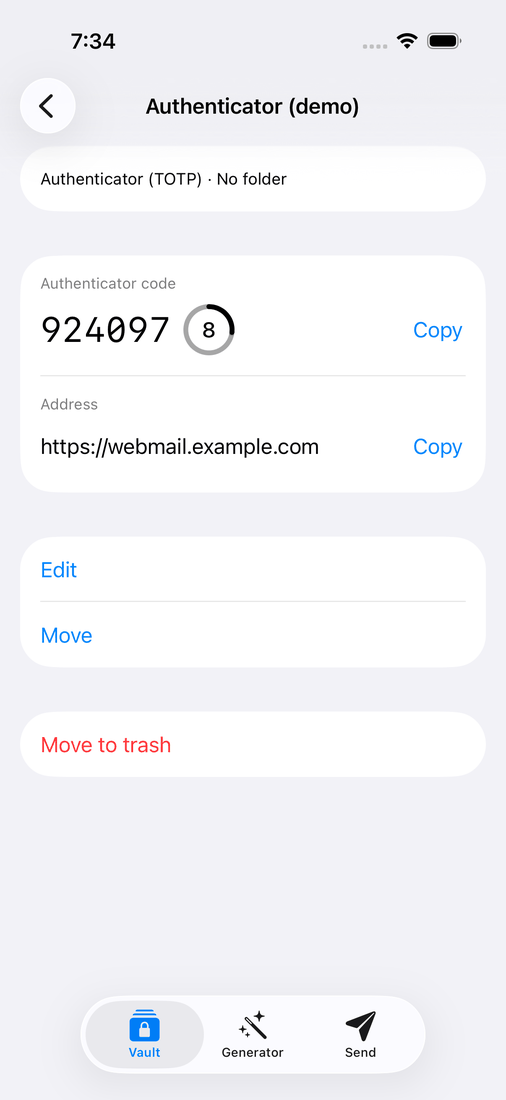
An item with an authenticator shows its current code. The circle counts down to the next one. Tap Copy to copy the code.
Adding and editing
Tap + to add an item. Pick its type and fill in the fields. In an item, Edit changes it and Move puts it in another folder. Move to trash removes it. You can restore it from the trash in the web app.
Generator
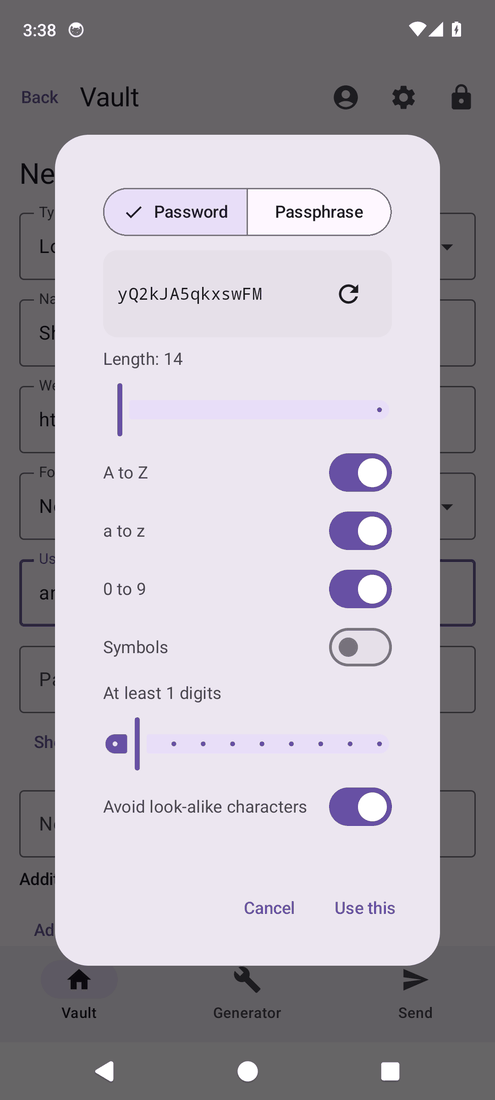
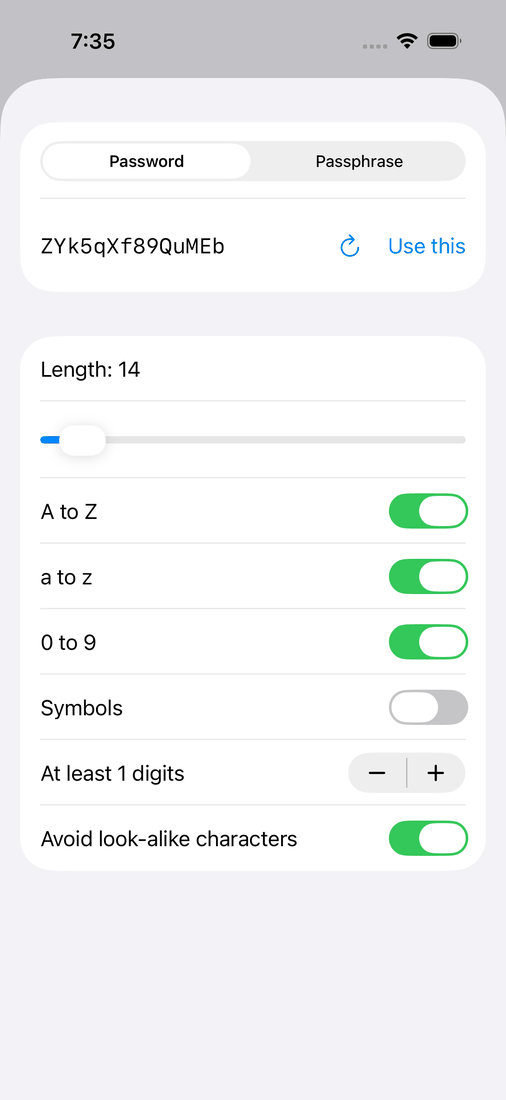
The Generator tab makes a password or a passphrase. Set the length and the kinds of characters you want. Avoid look-alike characters leaves out characters such as 0 and O. Your organisation's password policy sets the limits. Choose Use this to put it in the item you are editing.
Send
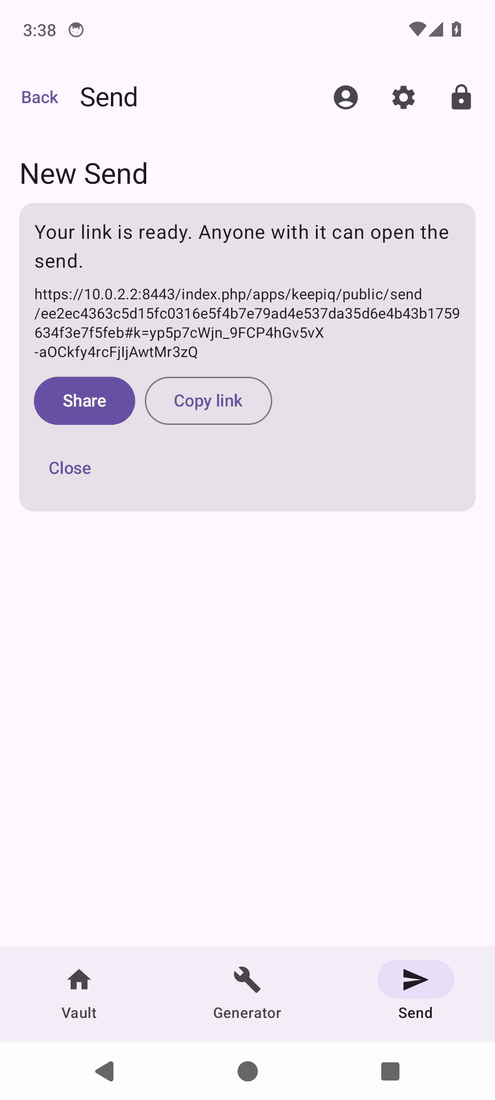
A Send shares a secret through a link that expires. Open an item and choose New Send, or start one from the Send tab. When the link is ready, choose Share or Copy link. Anyone with the link can open the Send, so pass it on with care.
Open a Send link on an Android phone and Keepiq shows its content. Opening it uses one of its views.
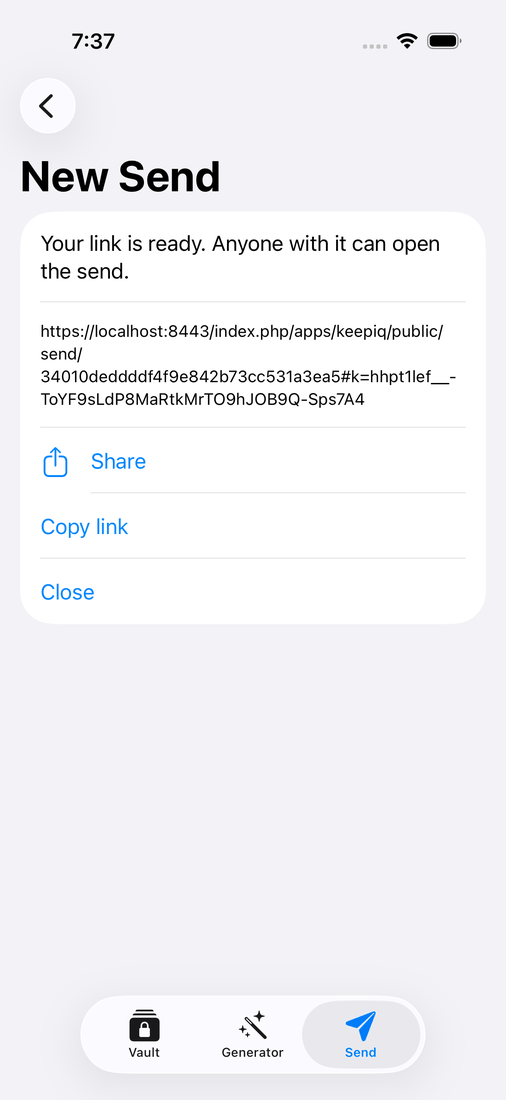
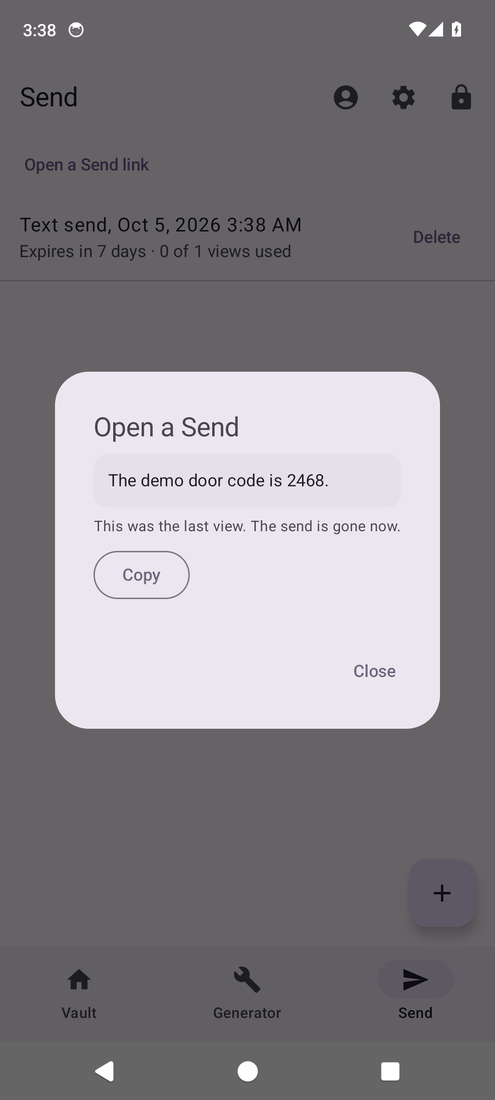
On iOS you cannot make a Send with a password yet. A Send link there opens in the browser.
Fill in logins in other apps
Keepiq for Android can fill in your logins in other apps and in your browser.
- In Keepiq, open Unlock and account from the settings button. The Autofill part says whether Keepiq fills in your logins.
- Tap Choose Keepiq for autofill. Android asks whether you trust Keepiq. Confirm.
You can also do it from Android: open your phone's Settings, search for Autofill service and choose Keepiq. Where it sits differs per phone.
Tap a login field in an app or on a website. Keepiq offers the matching logins. When the vault is locked, you see Unlock Keepiq first, without any account names. After you unlock, Keepiq fills in the login you choose.
Keepiq only offers an app's login to the app it belongs to. A copy of that app from another publisher gets nothing.
When you sign up or change a password, Keepiq offers to save it. Choose Never to stop the offer for that site or app. Android 9 and 10 only show Not now. To see or undo your Never choices, tap Show where Keepiq never saves under Autofill in Keepiq's settings, or the gear next to Keepiq in Android's autofill screen.
A one-time code field gets the current code of the matching login.
On iOS this comes later. It needs a signed build from the App Store or TestFlight.
Offline
Keepiq for Android keeps an encrypted copy of your vault on the phone. Without a connection you can still open, search and copy. The vault shows when it last synced. Adding, editing and deleting need a connection, and Keepiq tells you so.
Keepiq for iOS does not keep an offline copy yet. It needs a connection.
Coming next
- Autofill on iOS. Fill in logins in other apps and in Safari.
- Passkeys. Sign in with the passkeys in your vault. This needs Android 14 or iOS 17.
- Google Play and F-Droid. Install and update Keepiq for Android from a store.
- The App Store. Keepiq for iOS, first through TestFlight.